#785: Enshittification (Part II) – snapping & mapping fails

Around a year ago, old-school Tip of the Week had a “2025 Enshittification: part 1” post which looked at how online services routinely drop features that people like because it suits the provider to not sustain them. It’s high time to revisit the topic, specifically looking at changes being made to online mapping services and one popular document scanning app.

In truth, if you’re going to rely on a free service, be ready to expect the provider to muck it up for you. If you like to look at your old house on Google Street View, best head over there now and screengrab it as some day they may decide to stop storing previous captures or something.

It feels like it’s only a matter of time before Amazon starts making Alexa a paid-for service, or subsidises free use for telling you the weather or play the radio by playing “would you like to buy a new Carlos Fandango umbrella to protect you from tomorrow’s rain?” inline ads.

Microsoft Shutters Lens

A bit niche, maybe, but Microsoft has been offering a scanning app for smartphones for years. Originally called Office Lens and available for Windows Phone since 2014, later rebranded (of course) Microsoft Lens and even gaining “PDF Scanner” to tell you what it’s primarily for. It was previously discussed in old ToW #682. There used to be a PC app as well as iOS and Android ones, but that has gone already.
Article content

Despite nearly 1M ratings of average 4.8 and over 50M downloads on Android, its days are numbered. Rather than keep Lens alive, Redmond has decided to build some of its functionality into other apps, like OneDrive and/or OneNote. Sadly, neither is as simple, fast or fully-featured as Lens is/was. RIP.

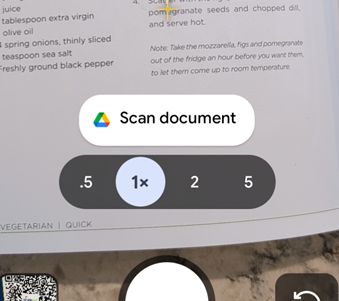
Of course, there are plenty of other alternative scanning apps, including the built-in one for Android users, where you just point the camera at something which looks like a document and it’ll give you a shortcut to Google’s own scanning software which can detect page edges, bundle multiple scans into a PDF and so on. Since the scan feature is part of the Files app, you can go there and start a scan directly too.
Article content

At least Lens had a fulfilling life in the sun, unlike Viva Goals, a product of acquisition which likely cost Microsoft $200M+, and was deep-sixed after only 2 years.


Google “Privacy” copout

How many times have you seen a statement like “for your safety and security”, and realized that its primary goal is actually to make somebody else’s life easier?

Google had a neat feature, if you chose to turn it on, where Maps on your phone would keep a record of where you’ve been and upload to your Google account, so you could view your travels within Google Maps on your computer. Called Timeline, it was briefly covered in previous ToWs including the trend for apps to be replacing websites and not always to the users’ benefit.

Article content

Timeline was discontinued so you could no longer go to Maps and see where you’d been in the past. It’s tantalizingly still there in the menu today, but all it does is tell you to use the mobile app and offer more help on the activity controls.

The reason? For privacy’s sake, Google was no longer going to store all that info on its servers, rather the tracking data would only live exclusively on your primary phone. Sounds fine, unless you lose the phone and don’t have it backed up, or some other calamity occurs and deletes all the data.

Is this to protect the user? Or is it to protect Google from liability in case its service was somehow compromised, and the whereabouts of millions of people over time had been made available?

The DIY Alternative

If you like the ability to track where you’ve been, whether that’s to make your mileage claims easier or just to provide yourself an alibi when accused of being somewhere else, there are alternatives to Google Maps / Timeline though none are quite so easy to use. Self-hosting – as in running a server on your own network rather than relying on a cloud provider who might vanish tomorrow and/or start monetizing your data – is a favoured option for tin-hat wearers and honest folk concerned with privacy and/or who prefer to make their own lives difficult.

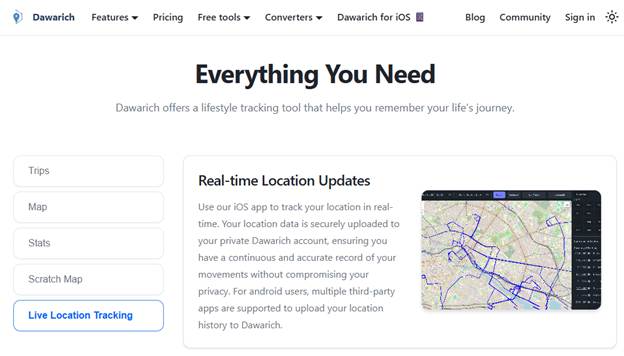
The leading alternative to Timeline is probably an open source project called Dawarich, available either as a subscription cloud service or software you can run on your own. If you have a Synology NAS device with enough oomph to run Docker, there’s an easy to follow* guide, How to Install Dawarich on Your Synology NAS.
Article content
Dawarich.app

*easy to follow may be relative to your exposure to config files, IP address mapping etc

Dawarich lets you import location history from Google Maps or you can have apps on your phone regularly tracking and reporting your location history directly to your Dawarich server.


Is Bing Maps really a Zombie?

Sticking on the theme of making mapping stuff worse, Microsoft has been busy “evolving” Bing Maps.

Launched as “Virtual Earth” over 20 years ago, it morphed into numerously named Windows Live, MSN and eventually Bing Maps for consumers as an alternative to Google Earth and Google Maps, and also aimed at enterprises in the hope that they would build mapping services into other applications and pay for the privilege. There had been a previous set of software and services called MapPoint dating back to the Y2K, now superseded.

There were some cool features that differentiated Bing from Google when it came to maps – things like high-resolution “Birds Eye” images taken from spotter ‘planes…

Article content
Microsoft UK HQ – TVP – in old “Birds Eye” images – note that B5 was still being built, so must be 20 years old?

… to free use (for UK users) of the Government’s Ordnance Survey mapping data. At one point, Bing even licensed the old A-Z maps for London, as “London Street Maps”.

Article content
Bing Maps showing Ordnance Survey, with other options including licensed London A-Z Maps

Bing also offered drive-by imagery akin to Google Street View called Streetside. It was never quite as good as Google’s service and it took years to become available internationally, but there were places where it would have more up-to-date pictures compared to Google’s own Street View pictures and data.

Article content
TomTom “surveyed” Thames Valley Park at a time when the park was closed

As you can see from the view above, the images were taken by cars operated by veteran satnav provider, TomTom. Similarly, the Ordnance Survey maps and Birds Eye images were licensed from other 3rd parties.

Unfortunately, when a licensing agreement exists then it also means at some point, one or both parties might decide to not continue it. Such has happened with Bing Maps, the consumer offering – it has dropped pretty much everything of interest beyond basic map and satellite views. A 3D option does offer some cartoonish generated models of some areas, though it’s a long way from being universal.

Article content
The London Eye in a mock 3D render. Looks OK from a distance but like a 1990s arcade game up close

Microsoft also had a Maps app for Windows, which was a wrapper for the Bing Maps service but could also deal with offline data. Presumably due to lack of use, the Maps app has now been taken out behind the bike shed and given a good knobbling:

Article content
Nothing to see here, move along, move along

On the plus side, one useful feature which wasn’t present previously, the latest Bing Maps will show the exact address (including Post Code or Zip Code) of any point you right-click on, also displaying the lat/long coordinates and even the height above sea level.

Article content
Bing Maps still shows Microsoft Buildings in TVP. B1 is the last remaining one open.

It was announced that Microsoft is shutting down Bing Maps for Enterprise and migrating everything at the back end to using Azure Maps, which has a different set of functionality primarily aimed at developers looking at embedding maps into other sites and overlaying other data onto a map. It’s easy to wonder at what point Redmond will pull the plug from Bing Maps altogether.

Accessing Missing data from Bing

Sadly, there’s nowhere else providing the TomTom Streetside views, nor the Birds Eye images, other than going to Google Maps and seeing what they have.

If you miss the OS Maps feature from Bing Maps, there are few alternatives – the best is probably OSMaps.com, which still offers (for a subscription) what they call topographical maps (i.e. OS LandRanger or Explorer). It’s a little clunky but has a reasonable mobile app too, so you can plan trips and take them offline with you.

Article content
TVP from the Ordnance Survey site – www.osmaps.com

#783: Is competition innovative or distracting?

Anyone who has worked in technology has probably dealt with a competitive situation.

Maybe it’s trying to position your solution against all the others companies’ products, perhaps it’s the annual performance review tussle with your so-called “co-workers” or you’re just trying to get funding or investment from the higher-ups to get something done (when they might prefer to spend the money elsewhere). It can be exhilarating and exhausting.

Competing with other external parties to deliver a service or a product probably sharpens the minds of the people developing it, so in theory having strong competitors should make you stronger too (or you don’t survive). But does internal competition improve offerings,  make the organisation more efficient, or is just a giant distraction? If “leaders” spend time fighting with each other instead of focussing on the end goal, maybe they’ll eventually lose out to more agile or innovative competitors [See IBM, HP, Digital, Intel…]

Some companies have consciously fostered internal competition or even conflict to accelerate their own developments. Occasionally, companies will pool resources with erstwhile competitors to help them innovate more quickly or to gang up against even stronger companies.

Microsoft and Apple

Both Microsoft and Apple have evolved through several phases from the mid-1970s until now. For Apple, there was the first era of founding Steves Jobs & Woz, then Jobs booted out and Apple nearly going bust, Jobs coming back and saving the world, before Tim Apple took the company to be the biggest in the world.

Microsoft had a parallel of Bill & Paul founding and expanding in the early days of microcomputing, to Windows dominating the OS landscape, Steve Ballmer taking over and laying some of the groundwork for the transformation to being a cloud company that Satya has driven.

Not many companies get to pivot so many times and still be not just relevant but at the front of their field. They’re still 2 of the most valuable companies ever, by market cap, at time of writing, stocks can fall as well as rise etc etc. Somewhat ironically, since starting to write this piece, Google has overtaken Microsoft for the first time, their value more than doubling in less than 8 months.

Article content

A bubble, you say? Shurely shome mishtake.

Maybe the presence of a talismanic founder or two can help companies in their early stages – in Robert X Cringely’s excellent historical guide to the early days of the microcomputer industry, Accidental Empires (1992), he addresses both Jobs and Gates. Chapter 10, “The Prophet”, starts by calling Steve “The most dangerous man in Silicon Valley”. Bill, in “Chairman Bill Leads the Workers in Song” is characterised as the Henry Ford of the microcomputer industry.

Sometimes, Bill is said to have actively fostered internal competition between different groups rather than imposing a way of doing things – the thinking being that if two or three groups each try to solve a problem then the best solution will win.

Article content

This old joke org chart comparison illustrates a few truisms – at Google, Larry & Sergei might have had the ideas, but Eric Schmidt ran everything. Oracle perhaps spent more on enforcing licensing than on engineering, and at Apple (post 1996), everything revolved around Steve and all decisions went back to him.

But if you were at Microsoft in the early 2000s, you’d smirk with recognition at the warring nature of how their product groups sometimes behaved.


MS: Not just about Windows

For many years, Microsoft had the two cash cows of Windows and Office. The Operating system was licensed to PC manufacturers and sold to enthusiasts and businesses who upgrade every few years. People even queued at midnight on August 24th 1995 to buy a copy of Windows 95; apocryphal stories did the rounds of some shoppers not even owning a computer but they got caught up in the hype for fear of missing something.

Internal influence was rather staked on which part of the division you worked in – Windows, especially under BillG’s tenure when everything else pretty much had to support the Windows business, was the big dog. Office was somewhat secondary but also made Mac versions and was bought by people devolved from whatever cycle they replaced their PC or upgraded its operating system. Server products which ran on Windows NT Server but were tied into usage of Office somewhat straddled the two.

It wasn’t uncommon for Microsoft to have multiple products which overlapped yet were built by different teams – Windows 3.x vs OS/2, Windows 95/98 vs Windows NT, Office vs MS Works, Internet Explorer vs MSN. Even within product groups, there were often numerous bits of technology being developed which had already been built by another team (at one point there were 3 or 4 different and incompatible ways of doing “workflow” processes).

There’s no doubt that there was wasted effort – products would go through long development cycles only to be canned before release (or like KIN, shortly after). In a remarkably honest interview to coincide with Microsoft’s 50 years anniversary, Steve Ballmer admitted there were silos between productivity and systems divisions. A very in-depth interview with Steve on the Acquired Podcast delves deeper into his regrets around the “Longhorn” development that cost the company years.

Show me the money!

Between 1997 and 2000, the company’s revenue grew from $12Bn to $23Bn but net income nearly tripled from $3.5 to $9.5Bn. What was behind the success? Enterprise software sales. The steady growth of Windows NT and the associated client licenses for running back-office servers, along with SQL Server database and Exchange Server for email was really paying off.

By comparison, Microsoft’s FY25 numbers came out at $281.7Bn with a net income of $101.8Bn – even adjusting the FY2000 numbers using the Bank of England Inflation calculator, the latest figures are remarkable. 2025 revenue is 641% of 2000’s and net income is 561%.

Over time, Microsoft shifted away from just being dependent on Windows & Office, by adding numerous other successful businesses, focusing on Enterprise then the cloud and latterly bunging AI into every offering.

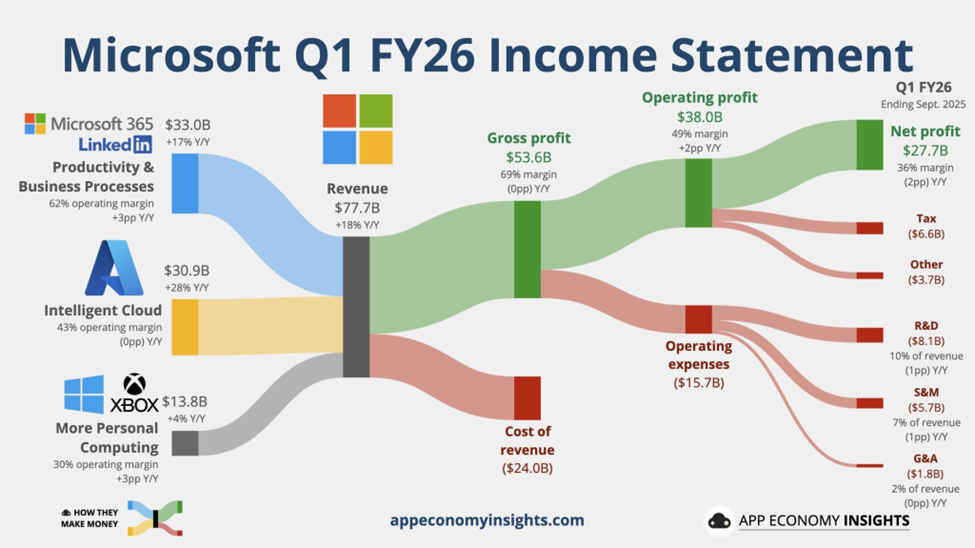
Every quarter when they release fiscal results, Jack Rowbotham posts on LinkedIn summarising where the money flows – and using visuals produced by App Economy Insights it’s quite clear where the power lies now.

Article content

Whatever you think of Microsoft, if you cut the company, they bleed software (and services).

Hardware has always been a means to an end – to sell and use the software. The original Microsoft Mouse was just a way to get people used to the graphical interface that would eventually be the key UX of Windows. Today, Surface devices aim to show how a great PC can be and, for now at least, Xbox continues to be the means to sell more games (and Game Pass subscriptions).


Apple – the Return of the King

Article content

Microsoft and Apple have had a “complicated” relationship since the early days.

Bill and Steve had a degree of respect and even friendship for each other, but as both companies became successful there were clearly times when they were at loggerheads.

Article content

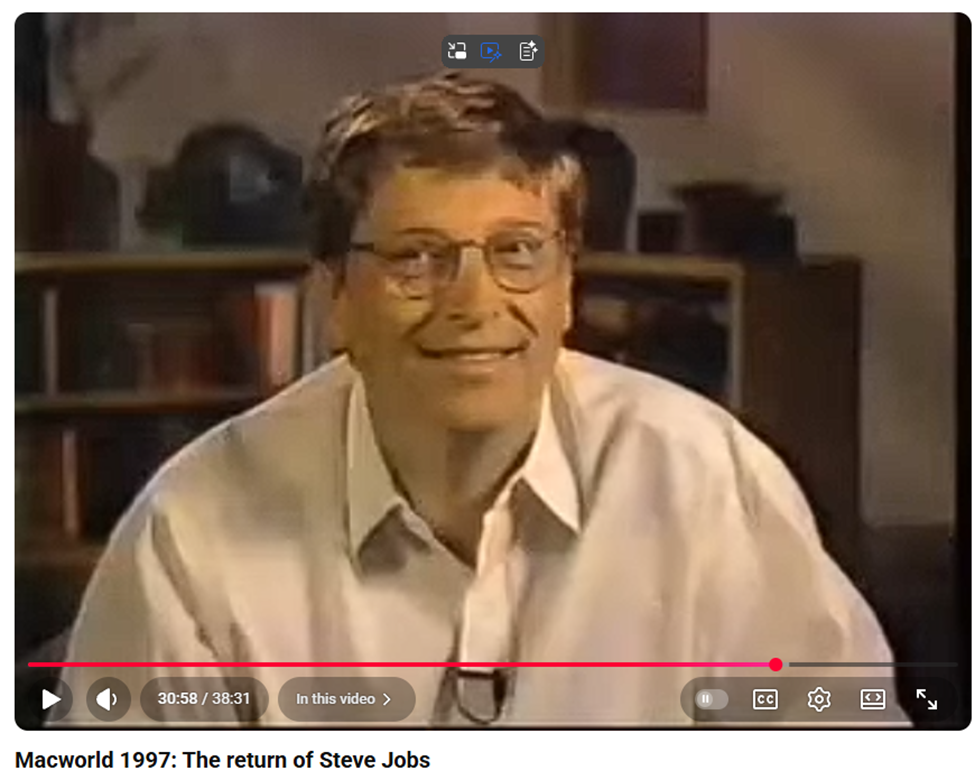
In that seminal interview, Steve lays out his vision for humanity of taking the very best of things to improve itself, casting Apple as true innovators and Microsoft as pedestrian followers.

Jobs famously went to visit Xerox PARC and took inspiration from what they were doing with graphics, mouse, printers and networking as the genesis of the Apple Lisa and later Macintosh products. The Mac has always been a niche offering – arguably beautiful, proprietary and expensive, it could never really compete for the mainstream in the same way that Mercedes or Jaguar or BMW were always going to be in a different league to Ford and Toyota.

The PC and DOS had become hugely successful and when Microsoft debuted Windows, Apple was clearly not happy. Lower-cost, more diverse PCs with many peripheral and software companies building on top of them competed against the Macs with relatively few software packages being developed. Jobs was fired by Apple in 1985. There were attempts to create other products, like the Newton, but they proved unsuccessful and perhaps a costly distraction.

Apple was circling the drain, and at the time of Jobs’ return in 1997, it was said that Microsoft made more money selling Office to Mac users than Apple did selling Macs to Mac users.

Quoting Bob Cringely again, whose book was published before Steve Jobs came back to save Apple from itself:

Steve Jobs holds an idea that keeps some grown men and women of the Valley awake at night. Unlike these insomniacs, Jobs isn’t in this business for the money, and that’s what makes him dangerous.

Jobs came back and brought in some help from outside – including Larry Ellison from Oracle, despite the boos from the faithful. Steve began admitting that Apple would like to do some software and having software industry expertise on the board might be a good idea.

He also suggested that Apple and Microsoft were going to partner more closely – as a way of resolving some long-time disputes relating to look and feel of Windows and Mac, and Microsoft agreeing to keep supporting the Mac platform with releases of Office at the same cadence of the ones for Windows.

Microsoft was also going to pump some cash in to make sure Apple was kept alive (a useful bet against the Department of Justice, who were breathing down Redmond’s neck at the time). The $150M of non-voting stock that Microsoft bought was sold 6 years later for $550M, so that worked out well.

The jeers from the Apple fans at Macworld 97 were not just reserved for Larry from Redwood: Bill from Redmond got even more.

Article content

Jobs made a hugely important point to the Macworld congregation at the time: they need to let go of the idea that for Apple to win, Microsoft has to lose. This idea that competitors can sometimes work together for mutual benefit or even survival is clearly valid.

Apple makes Things

Meanwhile, Apple has gone from near death to world dominance. Jobs led an obsessive focus on customer experience, which made sure they built products that people loved. The iMac injected some pizazz into the ageing Mac product lineup, launched a hugely successful laptop line in PowerBook and MacBook, and came up with a variety of ancillary products like the iPod, iPhone, iPad and Apple Watch. By Q1 2007, the iPod on its own was responsible for almost half of Apple’s revenue.

The iPhone was the true saviour of Apple. For the first time, it attracted new customers to the brand, and they’d go on to buy Macs because they liked the experience (and the integration was well thought out). But it had a difficult gestation: Jobs deliberately kept the development of iPhone separate from the Mac, with direct oversight and freedom for that design team. He fostered direct – sometimes hostile – competition for the software platform to be used in the phone. Either the iPod would grow to become a phone, or the Mac OS X would be shrunk to form a new OS. The latter prevailed.

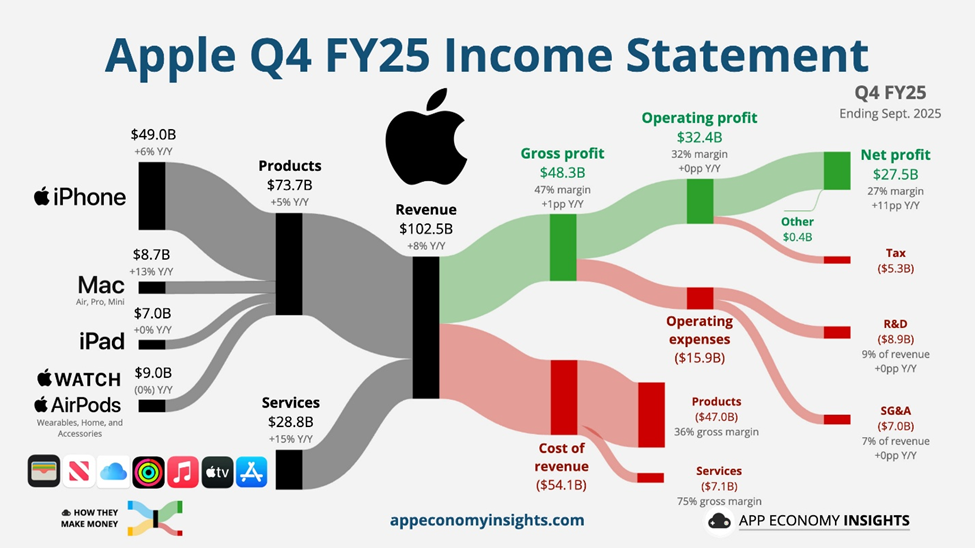
Looking at Apple’s fiscal makeup today, you can see that the majority of its revenue comes from products like iPhone, but services like iCloud, Apple TV, iTunes etc make up 28% of its revenue but 45% of its gross profit.

Article content

If you cut Apple, it bleeds devices and the related experience. They make great hardware which people love because the design and the software that drives it is well thought out. But the profitability growth is really behind the subscription services that provide that experience: nearly 45% of Apple’s gross profit comes from that services line, even though it accounts for only around one quarter of its revenue.


Are they still competitors?

Having been frenemies for some time and outright competitors for years (remember the I’m a Mac adverts? … not sure some of them would make the cut these days), do Apple and Microsoft still see each other as even relevant let alone a threat or opportunity?

Article content

Well, Windows still has the lion’s share of the desktop OS, though it’s fallen from around 85% to 65% over the last decade. The key thing is, the desktop has lost its dominance with more people using phones and tablets, and since Microsoft failed to compete in the phone OS and never really built a compelling tablet, it’s even stevens.

In its early days, Apple’s iCloud storage was partly on Amazon’s AWS and partly on Microsoft’s Azure cloud service – in fact, Apple was among the largest 3rd party users of Azure at the time. Reportedly, iCloud moved to Google Cloud and kept on using AWS for some too, alongside massive investments in their own datacenters.

Nowadays, Microsoft pretty much bundles Office in with a subscription so Mac users might not be counted a significant revenue stream on their own. M365 doesn’t care what device you’re using to access its services, as long as you are.

Very significantly, when Satya Nadella took over as Microsoft CEO, Office for iPad and iPhone were quickly released. Some commentators incorrectly attributed Satya’s new openness (Linux on Azure and all that) to account for the release of Office for iDevices, but the development had been underway for years. Steve Ballmer – who famously faux-smashed an employee’s iPhone – had given it the green light.

So, is internal competition really a good thing?

We can never really be sure.

Having several groups pursuing the same goal is inevitably “wasting” resource, but it may be that without that competitive tension they’d miss key breakthroughs, or fail to challenge long-held assumptions. Recognising and capitalising on opportunity, regardless of how difficult its gestation, that’s what marks out success in the long run.

What Apple and Microsoft have both done is to evolve their missions over time; freed the dependence on one cash cow in order to cultivate others. Just as old dogs lose out to young pups and newly-dominant lions kill the cubs of their predecessors for the survival of their pride, maybe the only way for some companies to survive is to encourage and embrace the “overhead” of internal competition in order to find new business.

89 / 777: Into the Sunset

OK, OK, so we’ve been here before.

The “Tip o’ the Week” newsletter ran from December 2009 until June 2023 as an internal Microsoft email, before eventually making it online (here on www.tipoweek.com) and to LinkedIn (bit.ly/tipoweek) as well. That first stint went to 688 editions.

After a while, “Tip of the Week” became a part of a commercial enterprise, published by OnMSFT.com. That survived for 8 editions, before OnMSFT was acquired (by WindowsReport.com). A lack of confidence in the new keepers led to it reverting to a voluntary exercise on the previous channels, where it’s been since January 2024 over the last 80 posts. If we add up the “post Microsoft” 89 to the 688 from inside, that brings us to 777 editions. And that feels like a good time to stop completely.

Well not *quite* completely

Tip o’/of the Week will become just “Tip of the Whim(if you’ve a suggestion for a better name, then I’m all ears) – I’ll still do the occasional thing, when it’s warranted and when I feel like it.

Some thoughts on future topics:

Article content
  • How OneDrive is Driving One Crazy
  • Enshittification part II (and probably more)
  • AI tools that change the world even more than the last lot
  • Whatever happened to the hype of IoT?
  • Where the car industry might go next
  • The wristwatch – how is it still a thing?
  • Why is the Windows Photos app so bad?
  • Where is my flying car, and why is the future not like they said it would be?

Anyway, it’s the weekend (nearly). Why not re-visit my favourite Tip and give yourself something to look forward to?

Article content
Vesper. Once you’ve tasted it, it’s all you want to drink.

Thanks to everyone who has commented, liked, provided suggestions or even solutions over the years. See ya!

Article content

87: Sharing with QR Codes

Some inventions solve a relatively discrete problem, which has a hugely unforeseen impact on wider society. When Sir Tim was guddling about with hyperlinked documents in a basement in Switzerland, he could never have imagined what the WWW would become.

Similarly, the shipping container was patented as a way of making it easier to get stuff on and off big ships, but according to the Economist, had a greater impact on globalisation than all trade agreements in 50 years, put together.

Predating the big metal box, the humble Barcode arrived in the early 1950s, as a way of marking goods with a unique SKU (or Stock Keeping Unit for everyone who thinks SKUs only apply to software licensing), though the idea had other uses – in the early 60s, British Rail successfully scanned rolling stock travelling past at 100mph using a system of metal plates.  

The barcode is simply a way of making it – supposedly – easy for a machine to identify the thing; its most commonly used scenario is, of course, the supermarket where the codes are all scanned at checkout. Mildly sweary comedian Eddie Izzard joked about it nearly 30 years ago though nowadays many of us are familiar with self-checkout and all the joys they bring.

1D to 2D

The 1-dimensional barcode is simply a way of representing a single number using a variety of lines that can be read by a light. As image processing technology advanced, Japanese motor parts giant Denso (variously connected with Toyota), came up with a system of labelling parts using smaller, square codes that could be scanned from any angle and even had some error-correction built in so if the lighting was poor or the label had been damaged, it still had a chance of being read. Importantly, a single 2D code can contain a lot more information – initially used to hold the individual SKUs or serial numbers of every component in a bigger box, making it easier to bulk-manage automotive parts.

Denso Wave Inc still owns the patent behind (and even the Trademark of) the QR (Quick Response) Code but generously doesn’t try to gouge a royalty from it, like many others might.

It’s not uncommon to see tiny stuck-on QR code labels on all kinds of auto parts like spark plugs; you might see them included on event or travel tickets, or anything that just needs a numerical ID Try reading them with your phone camera and all you’ll probably get is a number, just like if you point the camera app at a regular barcode.

Contemporary uses – URLs

A handy benefit of the extra capacity of QR odes is their ability to represent a URL. Perhaps the most-used is when you see a poster promoting some service or app (especially in captive environments like on trains or in airports), and it has the QR so you can download that app or connect to that site right away.

Reading the code is easy – at one point, a separate QR code reader app would be required but now with the camera apps on iOS or Android, you should be able to scan the code by just pointing and tapping on the pop-up.

Do be careful, though – generating QR codes is simple and there’s nothing stopping a nefarious sort from printing their own labels and sticking them on things, luring people to following a link to the wrong place. If the destination URL looks dodgy, don’t go through with it.

URL shortening services are handy, with or without QR codes. Sites like tinyurl.com or bit.ly give you a useful way of taking a huge URL – like a link to a document or photo in OneDrive or Google Drive – and making it shorter and/or more memorable. An example is bit.ly/tipoweek. Bit.ly also offers the ability to generate customized QR codes.

The risk with any URL shortener is that it’ll go away – both of the above examples have been around for years but if you encode a short URL into a QR code then you better hope it doesn’t change. Google famously announced the death of its own “goo.gl” shortening service, the axe on which comes down soon. Link Rot is a real thing. Also, having a URL fronted by a shortening service doesn’t necessarily give the user the confidence that they’re not about to be redirected to some site of disrepute.

Microsoft uses its own “aka.ms” for stuff that it wants to direct to, but many of the links are created and owned by individuals – so if you’re following one that was set up by someone who’s no longer there, better hope that it has been adopted by someone else or you’ll end up in Bing.

QR Codes are Ugly and Boring

There’s no getting away from the fact that QR codes are a bit of an eyesore; but they don’t need to be very big to be scanned using a modern mobile phone, and the error-correction functions mean you can add a lot of stuff to a QR code without fundamentally breaking it.

Some advertising can discretely show a code…

… or could add their own logos and other flairs. Here’s the bit.ly/tipoweek QR with extra pazzaz, courtesy of QuickQR.Art…

There are various paid-for online services which will generate fancy QR codes for you – don’t try and rely on Copilot or ChatGPT to take an existing QR code and jazz it up – their predilection for moving stuff around in images will almost certainly destroy its scan-ability.

Microsoft Tag Nuts and QR Wins

A researcher in Microsoft came up with a similar idea but using coloured triangles to offer a more visually arresting and more data-dense equivalent to the QR Code.

Tag didn’t last long; within a few years, it was put on death row. Even at the time, marketeers were predicting the death of the QR Code because none of the mobile platforms had native support, so you’d always have to use a 3rd party app, thereby denting its appeal.

The Tag platform limped on but was eventually killed by its acquirer, 10 years ago. In the meantime, the mobile camera apps added QR Code scanning functionality so it’s more mainstream, and the pandemic saw a bump with bars and restaurants asking people to scan a code to order their scran online.

[source – QR Code Statistics for 2025: Usage, Trends, Forecasts, and More from qrcodechimp.com]

Even if you take a snap on your mobile phone camera, you might be able to go back in and look at the QR ode if there is one. On Google phones, open the photo using the Photos app and select Google Lens to scan it for QRs.

On a desktop, copy the image to clipboard, go to Google.com and click the lens icon A white rectangular object with a black text

AI-generated content may be incorrect.

Then paste your image into the resulting page, and you should get the QR code resolved. FWIW, Bing images offers none of this.

Quickly Sharing a site with QR

Though QR codes can be used to do all kinds of things like join a WiFi network or start a mobile app, the bread-and-butter use is to share a website URL.

Chrome will let you generate a QR code by going to Settings -> Cast, save and share

You could add the “Create QR Code” shortcut to the toolbar if you find yourself doing it a lot.

Edge lets you do a similar thing, though can get to the QR Code bit more quickly by clicking the Share icon on the toolbar, or via the menu at Settings -> More Tools -> Share.

These could be useful if you’re building a presentation and want to share things with the people in the room, or have them contact you at the end. Even if presenting via Teams/Zoom, the QR codes can be scanned from a user on a PC at home so are worth including, especially for short URLs which won’t change (even if the thing they redirect to does).

Maybe the most useful way of QR sharing is when on the mobile; you want to quickly share a site with someone else on their phone. There are, of course, any number of ways you could do it, but on both mobile Chrome and Edge, go to the Menu -> Share and it’s right there…

Get the recipient to fire up their camera and click on it, and they will be on the site shortly.

LinkedIn Sharing

Even easier, if you’re at some networking event and you want to share your LinkedIn profile with someone (to show them how super-proud and humbled you are to be there), go to the Search box at the top of the app and just tap once in it – then the QR icon appears. Tap that, and bingo!

85: Transcribing Online Videos

We’re all busy. Who has time to watch training videos, recordings of online conferences and the like, without skipping the blah blah and getting to the point?

What if we could use cutting edge technology to give us more time to do the things we really want to be doing?

Some online videos have a transcript already published – on YouTube, for example, it’s an option hidden in the description, if the publisher allows it. Clicking the Show transcript button will then display a text stream of what was said, with timestamps alongside.

It’s not searchable, other than by using the browser to try and find text on the page. In the case of YouTube, though, it’s a handy way of jumping straight to a keyword in the video.

If you can get the transcription, you can get it summarised. Why bother wading through hours of corporate chiff-chaff if you could get the tasty bullets extracted for you?

But that’s not what we want.

Take One – the live video

Live broadcasts don’t publish the transcript; clearly, they can’t know what is going to be said and when. Maybe they’ll have live subtitling but that’s tricky to do anything with until after the event is over.

“As live” stuff like corporate events such as Microsoft’s recent MCAPS Start for Partners often don’t make the transcript available ahead of time. Watching these kinds of things in real time, there is one natty technique to get a transcript, even though it does have some shortcomings.

Using Teams, go to the Calendar view and start a new instant meeting…

Once joined, you’ll be the only participant and also the meeting organiser. Now Share the browser tab that is displaying the live video with your meeting; share just the window and make sure you’re including sound (so the sound from the window is getting picked up by Teams).

Now, you’ll be able to Start transcription and Teams will record everything that’s being said.

The downside is that everything is noted as coming from you (since it won’t know who is speaking in the real video) and some jargon might be messed up repeatedly. When the meeting is finished, you should be able to look at the Recap feature and locate the transcript.

Download the text to a Word doc and you’ll be able to do some simple editing like find/replace for common mistakes (in the MCAPS event, “FY20 6” cropped up instead of FY26, or “SME and C” instead of SME&C), and maybe even add in the names of speakers at different points if you know them.

The transcript can be fed to your favourite AI tool later to summarise it. More on that later.

Take Two – the replay of video

Other training vids etc might be published on-demand, and if they avoid sharing a transcript too, it’s still possible to use the same technique as above to capture what’s being said. You might even be able to alter the playback speed so you can capture the text without investing the actual time to watch the video …

Chances are that 4x playback will be a bit too fast for the transcriber to catch its gist. Stick to 1.5 – 2x and marvel at your own genius.

Take Three – they published the transcript!

Oh, frabjous day! If your video of choice does have a published transcription, it’s likely that it will have correct speaker names, and the creator may have tidied up any mistakes in capturing jargon or abbreviations.

In the case of the Microsoft MCAPS Start event referenced earlier, they did share the transcript as a .VTT file, a format used to define subtitle displays so it’s very chopped up and has timeline information too. Not easy to read, particularly, but we can overcome that.

Click the option on the control bar and you may see Transcript options; in this case, you can search for a keyword and jump directly to that point in the video, or click the little arrow to download a copy to a VTT file. It’s just a text file that can be opened in Word or Notepad if you insist; it would be worth saving it to your PC and renaming it to something.txt.

Feeding the Copilot

In this example, however you’ve arrived at a transcript file, lucky subscribers can use M365 Copilot to make it summarise the information. ChatGPT would surely do similar, and as long as the video is in the semi-public domain, there’s no worry about sharing all your secrets with OpenAI.

Here’s an example prompt for Copilot:

Using the attached transcript, generate a well-formatted word Document with 1. 2-page summary in short sentences and bullet points, paying particular attention to key announcements (particularly on program changes and investments) and any data points being used, 2. A 4-page summary of the key themes, any calls to action and take-aways from the content. 3. the actual text of the transcript ordered neatly into paragraphs of English, highlighting speaker names in bold.

Paste this prompt into copilot.microsoft.cloud and click the + icon to upload the .TXT or .DOCX transcription file you have already saved.

Give it a short while and you should get the document ready to view…

Using this prompt gives a short bulleted version, but asking Word to generate a longer summary in Copilot within the app might also provide a useful bit of readable text at the top, too.

You can tweak the level of detail with the drop-down menu on the lower left fo the Copilot option in Word. Selecting “Detailed” in this example will give a 2-3 page summary of the hour-long transcript, well formatted and easy to read.

Result! 😊

84: Keep on Running

When Windows 95 appeared almost 30 years ago, it made a big thing about the Start button and the menu that went behind it. The Start button on the screen – and on the keyboards of newer PCs – was the way to quickly get to everything.

Fast forward to today and the Start menu is visually more arresting and comprised of different categories of icons. At the top are Pinned applications (which may or may not be things you’ve pinned there; Microsoft or other app providers might have decided you want them front and centre). Then there are apps or documents “Recommended” due to your usage habits.

Microsoft is still tweaking with what to put on the Start menu: there’s a new update coming which includes categories of apps, too.

The problem with any arrangement of icons is that when a user goes to access something, they need to figure out where the icon is; frequently used apps might get pinned to the Taskbar for easy startup via muscle memory, so the actual Start menu is infrequently accessed for day-to-day apps. Also, many people live in the browser so they might never need an app to be invoked through an icon.

Start to Run

A more consistent way for launching an app might be to press the Start button then begin typing the app’s name. If you don’t have Excel pinned to your Taskbar, for example, it could be quicker to just press Start and typing excel <enter> to launch, than pressing Start and fishing about with your mouse to find wherever the icon is.

The same UI promises to help find documents you’ve used too, so if you know what you want to open with Excel, you could try that instead (eg timesheet…).

Hardcore Runners

For true keyboard warriors, there’s no better shortcut than WindowsKey+R, which launches the simple Run dialog. Generally speaking, you need to know the name of the program’s executable if you want to fire it up from here – eg. Entering “word” won’t get you anywhere, since Microsoft Word is actually winword.exe.

It does keep a useful Most Recently Used list of commands and some Autocomplete logic, though, and entering the name of a folder will open that in Explorer.

There are lots of built-in variables that can jump to places in Windows:

  • %userprofile% is your own home directory
  • %onedrive% jumps to wherever your main OneDrive folder is.
  • %windir% takes you to Windows own director, and can be combined with others like %windir%\system32

To see the full list, drop to a command line and enter set. Everything in the list could potentially be used if you strap a % in front and after it.

Ultra Running

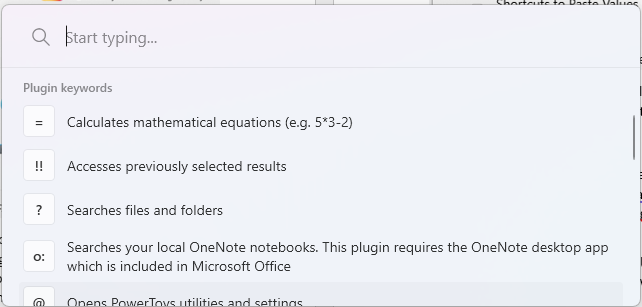
If the Win+R command is too namby-pamby for you and you prefer not to take your hands off the keyboard, there’s another super tool that’s part of the PowerToys package – PowerToys Run. Arguably not really a “Run” or even a “search” function, it provides both with a slew of additional commands and features that can jump straight to different parts of Windows.

Press the shortcut key sequence to launch it (as long as PowerToys is running in the background), and you’ll get a floating window right in the middle of the screen. There are quite a few “operators” which direct it to search, from using the keyboard to loop through the current windows, to searching OneNote.

Somewhat controversially, PowerToys Run uses the ALT+Space keystroke which diehard keyboard bashers will know is the shortcut to the Window management menu accessed from the very top left of every Window since 1985.

Fortunately, PowerToys Run can have its invocation re-assigned to, say, WindowsKey+SPACE.

Start a command with “.” and type the name of an app, and you’ll get a suggested list – not just from the app’s name but from its executable, so you could quickly see what to enter into WindowsKey+R in future, for the sake of saving a few seconds.

83: Exporting contact info at scale

Every email or productivity application which deals with contact info has some attempt at being able to sync, export or import contacts from elsewhere. “Attempt” being the operative word as you’re often left with a flat text file (or CSV) which might need some form of manipulation before it can be imported. Using Export & Import could be the simplest way of copying contacts from one account to another, or even cleaning up duplicates by exporting / fixing / deleting from the source / re-importing.

GMail supports importing CSV data or individual contacts in the form of VCF files, if you have them. Export to CSV is the norm too.

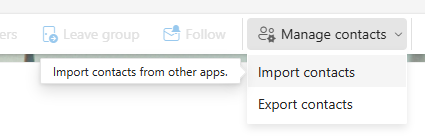
New Outlook and Outlook Web App have a simple mechanism for CSV import/export …

Article content

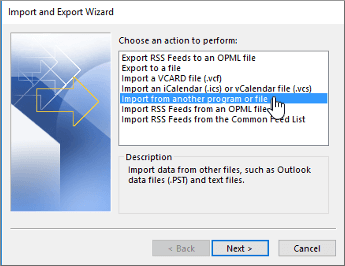
… while Outlook (classic) has a UI which hasn’t changed much in the last 20 years:

Export from company address book

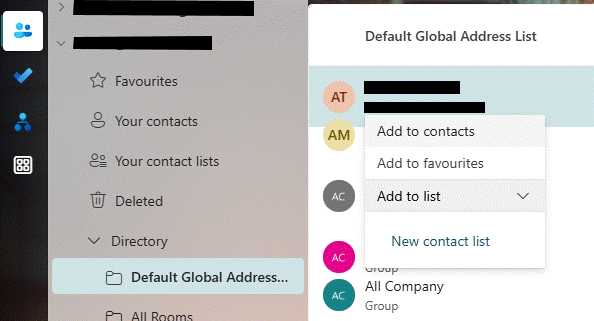
What if you want to batch-export a load of contacts for colleagues from your company’s address book? Let’s say you’re a group going away on a conference and you want everyone’s number so you can keep in touch? If you’re using Exchange Server on-premises or Microsoft 365 for email, then there’s a “default Global Address List” which has everyone in it. It might also have phone numbers, job title, department and other info, besides just a name and an email address.

Using New Outlook or Outlook Web app, you can only really operate on a single entry at a time, so it could be a drawn-out exercise to pick everyone you want and copy them to your own contacts.

It’s pretty easy using classic Outlook to add multiple contacts from the GAL. Open the Address Book (another piece of UI which is largely unchanged since the original Exchange client released over 30 years ago); SHIFT+CTRL+B is the fastest way to fire it up.

Hold the CTRL key down while you click on multiple names, then right-click on one of the selected ones and choose Add to Contacts. So far, so good. But what if you wanted to add dozens of contacts from Aaron to Zebedee, and you had thousands of entries in the GAL? It could be a bit of a faff to scroll, multi-select then Add to Contacts. If only there was another way.

Exporting the whole Offline Address Book

Speaking of faff, here is one technique which will export everything to a CSV file and then let you filter, sort and ultimately export just the stuff you want. You might be able to do other things like take a snapshot at quarterly intervals, then use Excel to compare the CSVs and see who has joined, left or moved department, changed job titles and so on. Quite Interesting, no?

The source of this goldmine is the Offline Address Book which Outlook (classic) keeps on every PC that’s connected to an Exchange/M365 mailbox, so the user can still see the address list when they’re offline. Now this technique isn’t necessarily for the faint hearted, but at least you only need to do the bulk of it once and then run a simple script whenever you want to extract the data from the latest OAB. It’s not exactly rocket science.

The OAB is held in a bunch of files on your PC’s disk; the format is uncompressed so if you’re foolish enough to open in, say, Notepad, you’ll recognize some text but there’s a lot of other stuff in there. Fortunately, some enterprising techies have pulled together a script that quickly rips through an OAB and delivers a neat CSV of users, and another of groups or mailing lists.

Step One – Install Python

OK, this would send most people running for the hills, but on a Windows PC it’s reasonably straightforward (and for the purposes of the rest of this example, we’re assuming you’re running Windows – if you’re a Mac or Linux user then you’ll need to figure it out on your own). As said, this is a one-off activity, to install both the Python scripting language, and the oab script that we’re going to run later.

Unless you’re already a Python developer, start by going to Python 3.13 – Free download and install on Windows from the Microsoft Store, hit the Install button and sit back for a bit.

Once the install has finished, we need to use a package manager called pip (no, not him) to find and install the oab script.

Start a command prompt by pressing Start and entering cmd, then in the command window, simply enter:

pip install oab

You’ll see a bunch of semi-scary looking warnings; none are really important other than one which is likely saying:

WARNING: the script <name> is installed in ‘<long directory name>’ which is not on PATH.

It will be easier to run these scripts if you add that folder to PATH. Carefully select all the text of the long directory name between the ‘ ’ marks, and right-click on it. This will copy that text to the clipboard.

Now enter, in the command prompt:

Set PATH=%PATH%;<right-click to paste the text copied>

eg.

This will mean in future, you can run the “oab” script from anywhere. Test that it works by just entering oab in the command window, and you should get a list of all the available options to run that command.

Step Two – Find your Offline Address Book files

Once you have Python and the script installed, you’ll only need to run steps two and three if you want to subsequently go back and re-extract data from the latest Offline Address Book.

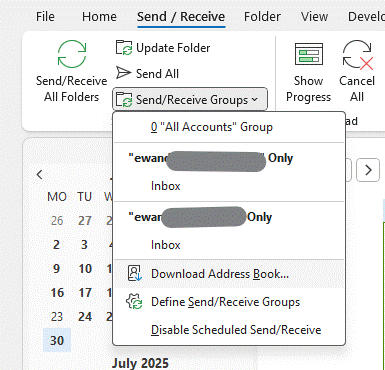
The Offline Address Book (OAB) is built on the Exchange Server or M365 service, usually every day. Outlook (classic) can download on demand, or it tends to pick the latest files up when it feels like it. You probably want to force it, by going into Send/Receive and choosing the option Download Address Book. Keep an eye on the status text in the bottom right of Outlook to see if it’s still downloading stuff, and when it looks like it has finished then proceed.

Now, the trick is to find not only the most recent OAB files, but the ones which correspond to the account you’re interested in; if you have Outlook set up (as in the case above) to connect to several M365 accounts, you may have to try a few times to find the right one – but if you’re in a megacorporation with 500,000 entries and the others are your M365 family subscription etc, then just look for the biggest file. Of all the different files that comprise the OAB, the one we want is udetails.oab.

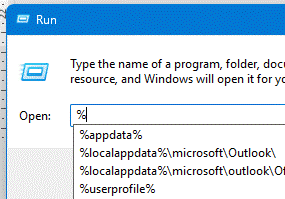
The OAB files are stored in a deeply buried location which can quickly be found by pressing the Start button or Windows Key, and entering:

%localappdata%\Microsoft\Outlook\Offline Address Books

You’ll end up with one or more folders with a GUID for a name; open each one in turn and look for a file called udetails.oab in the most recent folder(s).

Copy that file – assuming it has a recent date/time and looks sufficiently large (a 1,000 user company is going to be in the 1MB-2MB size, probably; Microsoft or Amazon will be more like 1GB) – to somewhere that’s easily accessible; why not try c:\users\<yourprofile>. You can get to that location quickly by pressing Start again and entering

%userprofile%

To prevent getting in the way of all the other stuff that’s in your user profile, you might want to create a folder (let’s call it oab) and drop the udetails.oab file in there for later perusal.

Step Three – Extraction

Now we have the latest OAB data file, it’s a simple matter of pointing the script at it.

Start by dropping to a command prompt (press Start and enter cmd) then changing directory to wherever you put the file; if you dropped it into %userprofile% then the command prompt will probably start there. If you put it in a subfolder, or somewhere else, then you’ll need to use cd to change directory (and possibly dir to check it’s there):

Now, from the command prompt, enter the following command to invoke the script to do the work (it is case sensitive so take care):

oab -C -o oab udetails.oab

If your OAB file is 100MBs in size, this might take a few minutes, but if more modest it’ll be a snap:

Now open the oab.users.csv file in Excel, select the whole thing, select Format as Table from the toolbar, tell it that your data has headers, and you should be easily able to filter out the rows you want to keep, delete the rest, then import them back into Outlook as personal contacts. Or do whatever else you have in mind.

As described earlier, to repeat the process in future, just update the OAB, grab the latest udetails.oab file again and re-run the script as per steps 2 and 3. Whatever you do with the resulting files, just make sure you do it responsibly.

82: Browsing, Collecting and Sharing

Following last week’s vaguely Viz-themed missive on Tabs, we’ll expand a bit on the organization of browser tabs.

Edging ahead

Microsoft decided to sunset the ageing Internet Explorer browser with a new one for Windows 10, built on more modern core technologies and codenamed “Project Spartan(when naming things after Halo characters was all the rage). This new “Edge” browser had some very nice functionality ideas, and the hope was that it would usher in a new era of performance, stability and security, at least compared to IE. In truth, it was slow, resource intensive and a bit flaky. Not all websites worked with it either, since developers would test their sites with browser versions which people actually used already.

A few years later, when Microsoft decided to ditch its in-house rendering engine efforts and move Edge onto the same core as Chrome, that meant that Edge could be every bit as compatible as Chrome but potentially differentiate with features the Google browser didn’t offer. Edge has arguably better tab arrangement and privacy controls, but Chrome has 10x the user base: let’s not get bogged down with which is better and why. There are plenty articles out there to offer their opinions.

Collections

One of those spangly new features that was part of the pre-Chromium Edge was the ability to “set aside” tabs; a step up from adding that site to Favo(u)rites, where you’d see a thumbnail of the tab when viewing the ones you’d decided to come back to later. This still sits, 7 years later, with a variety of other pretty neat features (like annotations) which have yet to make it across to the new Chromium version, or at least not to the same fidelity.

The nearest Edge/Chromium has to this tab set-aside feature is Collections.

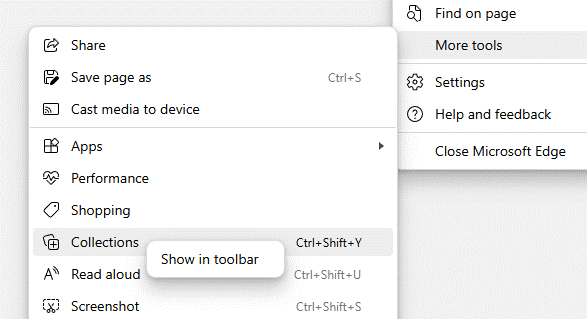
You may see the icon of a Plus sign on your browser toolbar; if not, delve into Settings or possibly even look under More tools to either access it or pin it to the toolbar by right-clicking on the menu option.

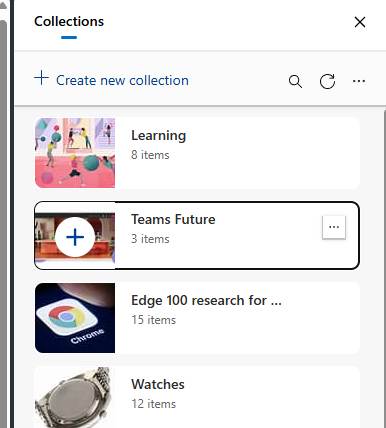
Collections let you group sites/tabs together by topic, add notes to individual tiles or the whole collection, and they sync across multiple PCs using your Microsoft Account or work/school account (aka Entra ID). They even sync to the mobile versions of Edge for iOS and Android, if you’re committed enough to be using that too.

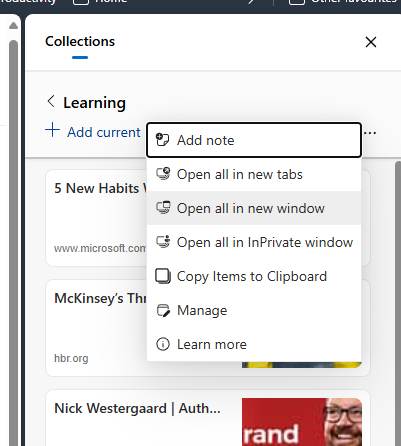
As well as providing a nice way of grouping sites and giving you pinned notes to serve as a personal aide-mémoire, Collections lets you quickly open the tabs in one action, so if you like to keep together several property searches, financial reports, product research pages etc, then it’s easy. You can share the tabs (including your notes) by copying them all to the clipboard as text and links, ready for sending on.

Working together

So far, we have Tab Groups that can be named and more-or-less persisted; there’s Collections which does much the same thing but with a bit more organisation. Collections is specific to Edge, whereas Tab Groups kind-of comes with the Chromium package so is common with other browsers too.

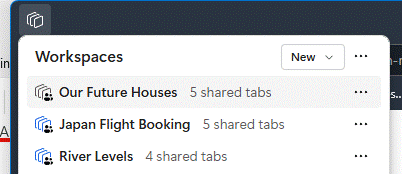
Now, the latest Edge-specific way of grouping tabs is Workspaces.  

The idea here is to group tabs that you’re using or working with, and share them with other people – again, using Microsoft Account or work/school ID, so they can collaborate too. Like Collections, Workspaces will sync across different PCs using the same login, but they are not yet supported on mobile versions of Edge.

In practice, when you click a Workspace to open it up, a new browser window will appear with all the tabs open. Any changes you make – adding new tabs, moving to a different part of the site,  closing a tab altogether – will be saved and reflected to everyone else also using the Workspace.

You do need to be mindful when using Workspaces that everything is shared, so don’t go opening tabs in that window which you don’t want other people to see. Also, when finished, close the whole Workspace window rather than closing each tab, otherwise you’ll remove the tabs for everyone else too. It’s worth having a play to see how useful this might be in sharing stuff between your family or your co-workers.

Alas, like everything else in the split-brain-identity Microsoft has with it’s MSA and Entra IDs, if you choose to invite someone’s Entra/work/school account ID, they must be in the same tenant as you. The UI will let you invite externals but when they click the link to join, they just get an unhelpful error message.

Plus ça change, Microsoft?

81: Mind your Tabs

This week we’re talking about Tabs, as in browser tabs, rather than any other kind.

Most people are familiar with the idea of having multiple tabs open in their browser – how many could be a sign of a tidy mind or otherwise (tl;dr – most people have 1-3 windows open with 5-10 tabs in each, so typically anything up to 30 open at once) – and any modern browser has added a load of functionality to make it easier to manage lots of tabs.

Having many open tabs does have an impact on the performance of your computer, as there’s additional stuff for the browser to manage, though Edge has a “Sleeping Tabs” feature (Chrome’s version is “Inactive Tabs”), which puts them into a kind of stasis if not used for a while. Look in the Edge Task Manager if you want to see just how much memory and CPU each tab is taking up…

In principal, there’s no limit on how many tabs you can have other than the resources of the machine itself – some people reportedly have used 1,000 tabs or more, at which point you have to wonder what their mailbox must be like.

One handy tip for Edge and/or Chrome is that you can search open (and recently closed) tabs – press CTRL+SHIFT+A and you can jump to or reopen a tab easily.

Arrangements

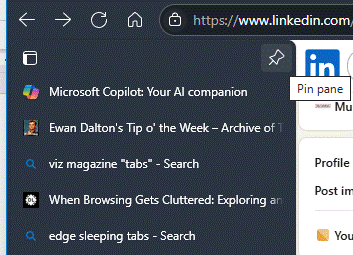
One of the simplest and most effective things you can do to deal with many tabs is to display them vertically, especially if you a nice big, wide screen. The vertical tabs pane can be pinned so you can see the page title (and can be resized by dragging the edge right or left), or you can let it collapse back and just see the icons for each site. Hover over any of them and the whole list will reappear.

Enable vertical tabs from the settings or by clicking on the Tab Actions menu on the top left of the Edge window (if you’re in horizontal tab mode). The same menu icon moves down a little, to the very top of the vertical tabs list when that view is enabled.

Surprisingly, Chrome doesn’t offer the ability to arrange tabs vertically without installing 3rd party addons.

Grouping

It might help to organise your tabs if you put them into groups, that can be quickly expanded and collapsed or moved around; select whichever ones you want by holding the CTRL key down while clicking on them, and then right-click to add them to a new group. Or drag and drop the tabs into an existing group.
A screenshot of a computer

AI-generated content may be incorrect.

Edge has a neat “Organis|ze tabs” feature which will suggest how to group open tabs together – it’s accessed from the Tab actions menu.

Run the organise tabs option and it will suggest groupings for you based on the titles of each open tab. Click on the pencil icon to the right of each to change its colour and name, and after applying the grouping you can move things around as you like.

Grouping tabs makes it easier to close them all at once, or to move them between browser windows in one block.

Microsoft has had a few goes at building functionality which lets you persist groups of tabs better, arranged into Collections or Workspaces: that’s fodder for another tip.

#79: Do you bother taking notes?

Copilot_20250604_103556

When you’re in a meeting or even a phone call, do you write everything down? Whether you listen attentively and then record a summary of events later (mentally or in other form), or you furiously annotate what is happening in real time, it’s a matter of preference which one works.

Some say the act of writing notes help cement things in your memory, like doing revision at school where you’d write a summary of what you were supposed to learn. Or is note taking a mental distraction where you concentrate on the notes more than the nuance of what is happening in the meeting? Or maybe just live in the presence, wing it, and try to remember what occurred later.

Linear people like writing a list of bullets, grabbing key points, comments or decisions as things flow. Other, more visual types might prefer a mind map (or are they just doodling?) The Cornell method prescribes a way of taking notes during the meeting, then revisiting them to take cues and action items, with a summary for later recap. There are many online guides explaining different approaches – in truth, you’ll probably need to try them and see which works best for you.

Whichever one you land on, it’s worth making sure you actually read the notes back – or like some computer programming languages, you’ll end up with write-only notes: they might have made sense at the time, but even their author could look back later and have no idea what they mean.

Perhaps the best way to run a meeting (as well as having an agenda, not making it too long, having everyone stand up to keep them attentive, etc) is to nominate one or two people to take notes and circulate them after the meeting, rather than have everyone taking their own. That deals with the “oh, I’m taking notes on my laptop/phone” excuse too.

Digital Note Takers

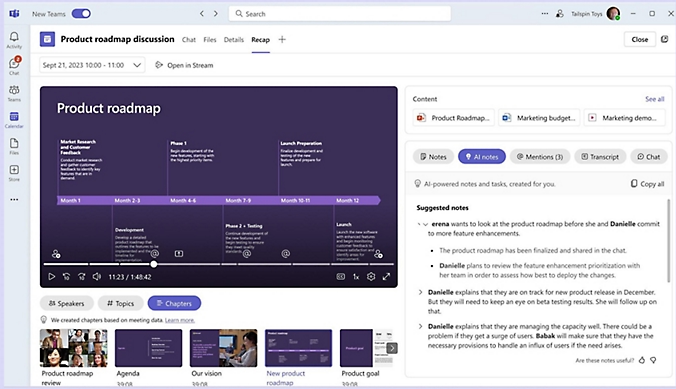
If you’re prepared to pay money then there are many options for having an automatic note taker in your meeting; Microsoft pitches both Teams Premium and M365 Copilot as ways of making recordings or transcriptions of Teams meetings, and looking for topics, actions etc.

497b6739-5821-4bc6-b46f-4e77349f1023

The idea is that you can go back into a meeting after the event and see a summary of what happened, with the ability to jump back to a specific point in the recording or transcription (so you can check the note-taker got the gist correctly). You’ll get a list of identified actions and who they’re assigned to.

There are pros and cons to Teams’ approach, though – the recording process is non-intrusive and the analytics takes place in the background, and all the data about the meeting is stored in the M365 tenant of the host.

It’s the organiser of the meeting, however, who normally gets to decide if it’s recorded or transcribed, and only (licensed) users within their organisation will get to see the summary. So, if you’re joining a customer meeting which they arranged, you get no auto-notetaking even if you have a Copilot license on your own tenant. If they share the transcript or recording with you, then you could feed it into Copilot (see Kat Beedim from CPS’s excellent process, repurposed in #47: Using Copilot for (consistent) meeting notes) but that won’t have the same fidelity as a full recording.

Un-Fathomable

Another approach besides having Teams or Zoom make the summary, is to use a 3rd party agent which will do it for you. The market leader is probably Fathom, though there are plenty of other upstart alternatives.

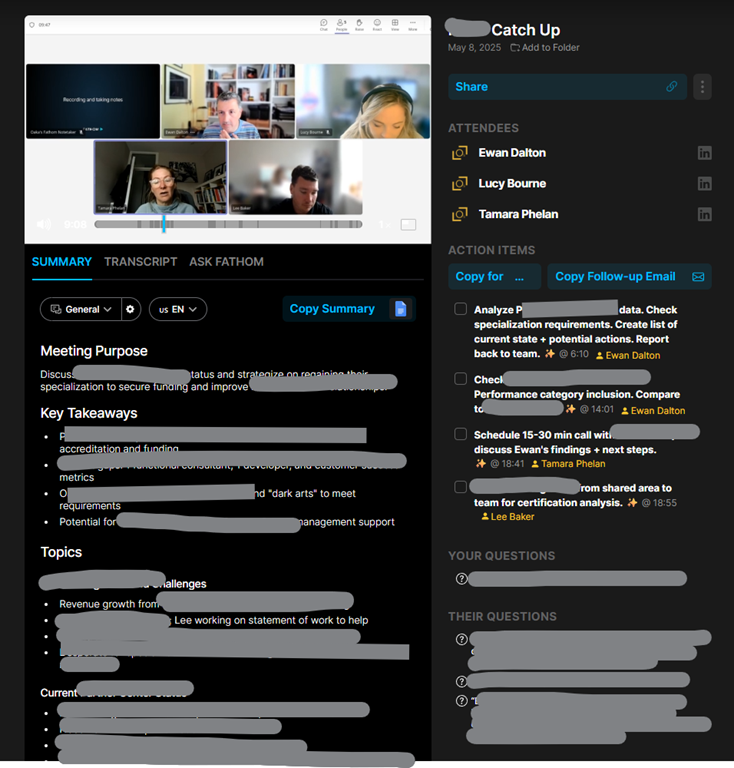
Fathom works by being external to whatever the meeting platform is; you invite Fathom’s “notetaker” to your meeting and it shows up as an additional attendee. This means you may be able to join “your” Fathom to an external Zoom, Teams etc meeting, if the organiser allows attendees to bring additional invitees.

In a similar vein to Teams Premium, it lets you revisit your meeting with audio/video summary linked to extracted notes. You can also share meetings with colleagues who were not present, so they can review actions from events they missed.

Screenshot 2025-06-04 100957

One downside to Fathom’s approach is that it needs to be in the meeting to be able to work; that might be obvious, but it lacks the ability to consume a recorded meeting and generate notes after the event. If you forget to invite Fathom or start it recording, tough.

Also, the very appearance of “so-and-so’s Fathom notetaker” in a meeting which you’re organising can be a bit passive/aggressive; normally you’d be expected to ask if anyone minds you recording a meeting, but having someone bring their eavesdropping sidekick in unannounced can be a bit weird.

The media

Reverting to the old-school activity of people sitting in a meeting, listening, contributing and writing their own notes… what’s the best way to do that?

Pad and pen? OneNote on a laptop? ReMarkable tablet? Ah, that is another can of worms to be opened on another occasion.